A TradingView to MT4/MT5 copier turns the alerts your charts already fire into real orders on your MetaTrader account. The strategy you wrote then trades itself, even while you are not watching.
On this page
- What a TradingView to MT4/MT5 copier actually does
- How the TradingView to MT4/MT5 copier works, step by step
- What your alert needs to say
- Several strategies, one terminal
- Entry modes: market, alert price, or pending only
- Lot sizing and where the stop loss comes from
- Partial closes, break-even and trailing
- Daily limits and protection
- Every feature in the TradingView to MT4/MT5 copier
- Why alerts get missed, and what stops it
- Setting up the TradingView to MT4/MT5 copier
- TradingView, or another source?
- Frequently asked questions
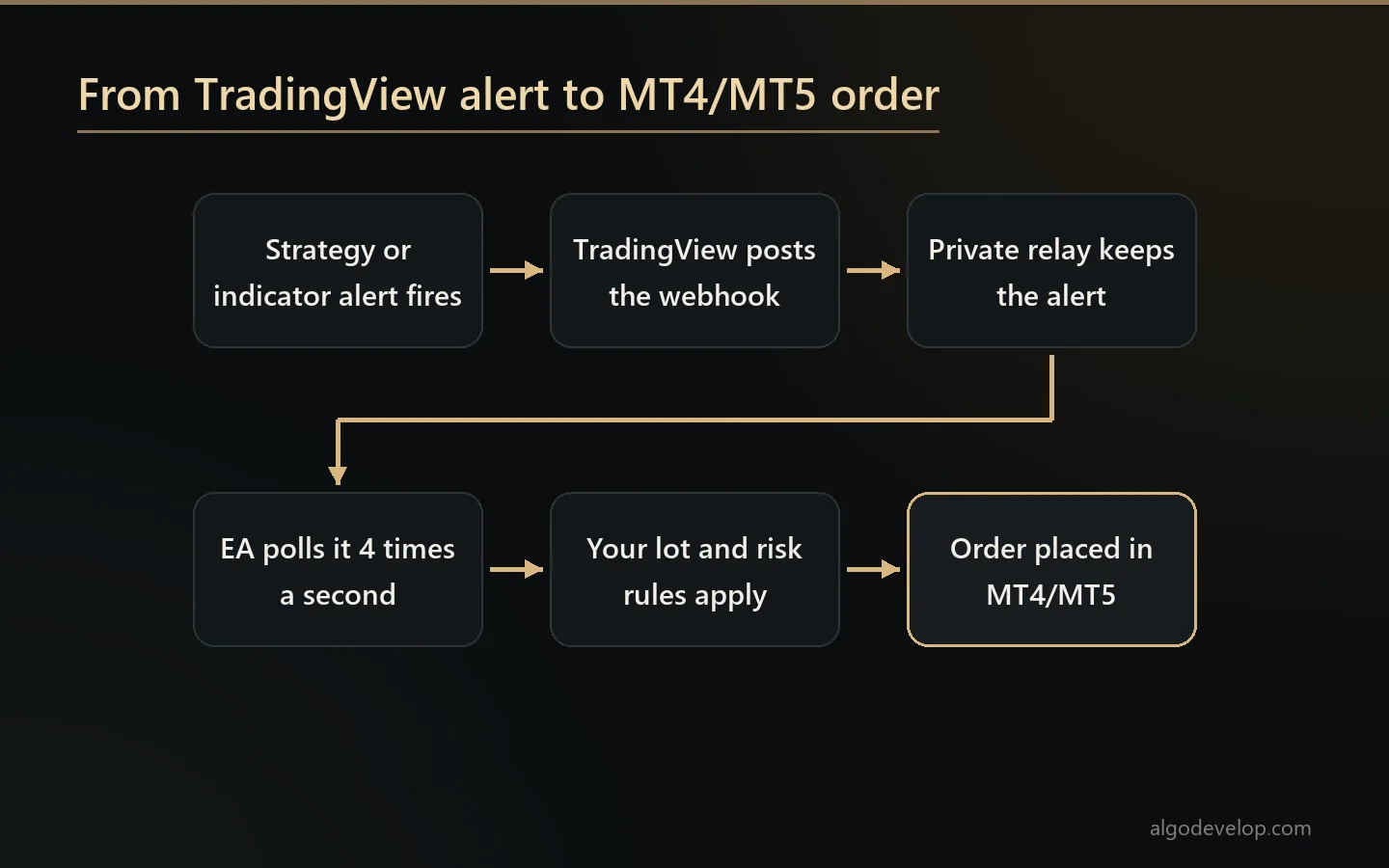
{ “key”:”gold@1″, “type”:“buy”,
“symbol”:”XAUUSD”, “sl”:2352, “tp”:2364 }
What a TradingView to MT4/MT5 copier actually does
TradingView is where many traders build and test their systems, and also where those systems stop. First the strategy fires an alert, and the alert reaches your phone. Then a person still has to open the terminal and place the trade. A TradingView to MT4/MT5 copier removes that last human step.
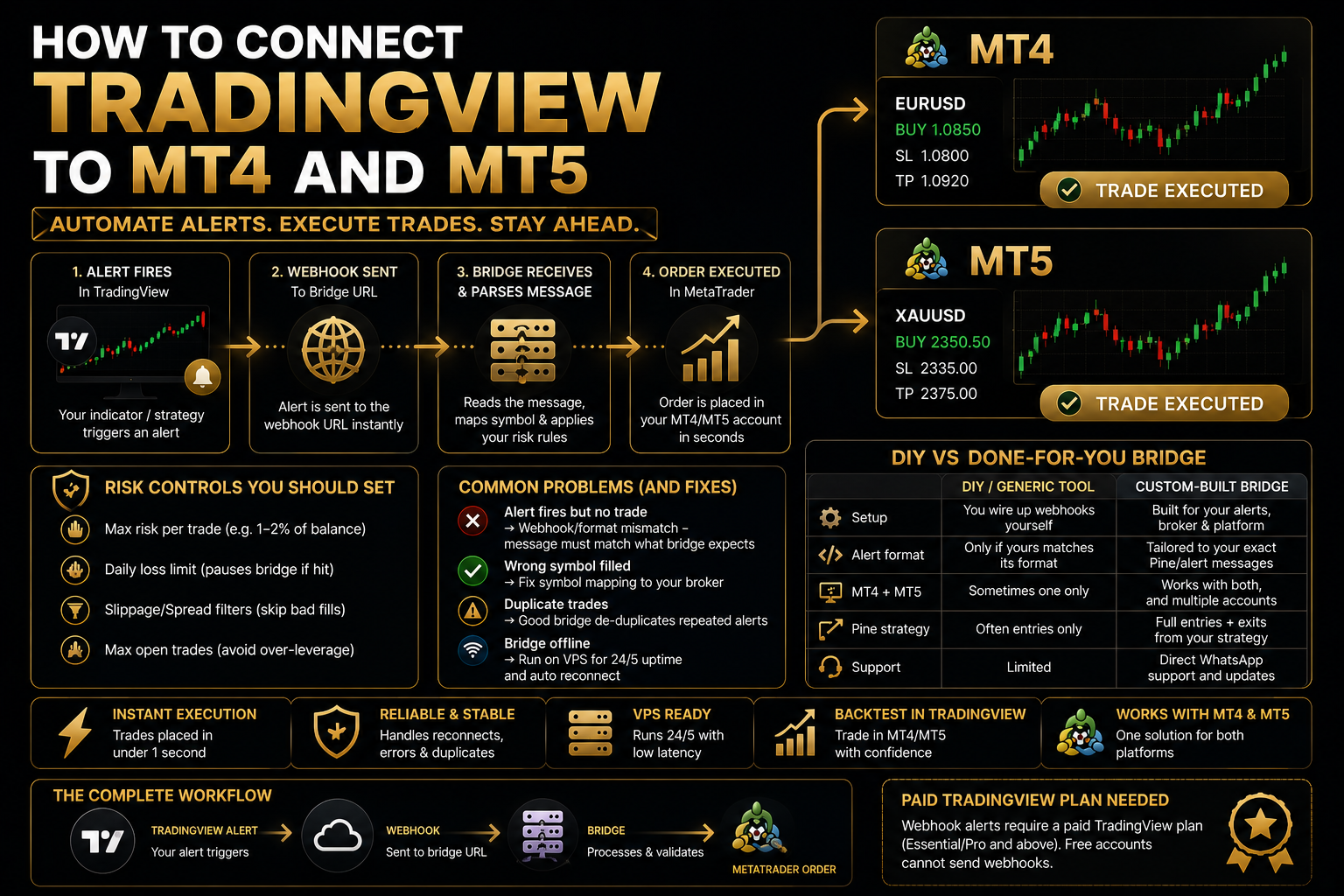
TradingView needs a public web address to send an alert to, and a home PC or VPS does not normally have one. So with this copier, your alert goes to a private relay address instead. Then an Expert Advisor on your MetaTrader chart collects it and places the order. It works out the lot by your rule, puts the stop loss where you want it and attaches the target.
Only the alert passes through that relay. Your broker login stays in your own terminal, the orders leave from your own MetaTrader 4 or MetaTrader 5, and nobody else can trade your account.
How the TradingView to MT4/MT5 copier works, step by step
- Your alert fires. It can be a strategy alert, an indicator alert or one you set by hand – anything TradingView can send to a webhook.
- It reaches your relay. TradingView posts the alert to a private address that belongs to you, and the alert waits there.
- The copier collects it. The EA polls that address four times a second by default. So MetaTrader sees a new alert within moments, not minutes.
- The EA reads the message. It takes the key, symbol and side, as well as any entry price, stop loss and take profit you send.
- Your rules apply. The key tells the EA which strategy sent the alert and how many positions that strategy already holds. Then your lot rule sizes the new one.
- The order goes in on your terminal, with the stop and target attached.
- The EA manages the position from then on: partial closes, break-even, trailing, and daily limits that can stop trading altogether.
What your alert needs to say
Your alert message is one short line of JSON, and you can paste it into any alert you already have. It names three things: a key, the symbol and the type, which is buy, sell, buyclose or sellclose.
On top of that, you can send your own levels. An entry price, a stop loss and a take profit can come straight from the strategy that calculated them, and distances in points work as well. When the alert carries a level, the EA uses it. When it does not, the EA’s own stop loss and target rules decide.
The key is a short name you choose, such as gold@1. It tells the TradingView to MT4/MT5 copier which of your strategies sent the alert, and that makes everything in the next section possible.
However, some indicators can only send a plain line of text, with no room for a key. Tell us if yours is one of them, because that needs a matching version of the EA.
Several strategies, one terminal
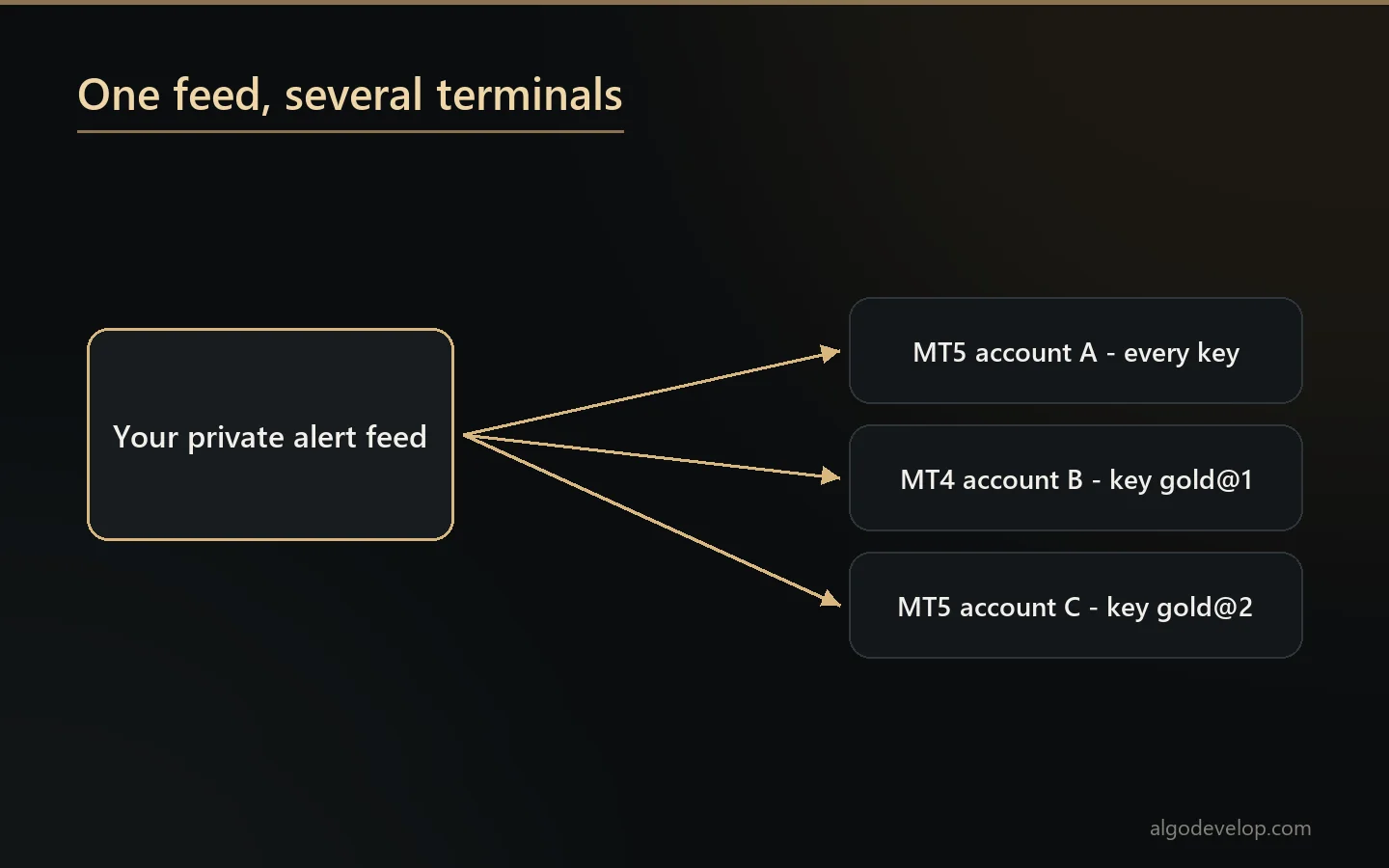
Most webhook bridges treat every alert the same. This TradingView to MT4/MT5 copier does not, because every key becomes a strategy slot of its own. The first alert with a new key creates the slot by itself, and from then on the slot keeps its own books.
- Its own magic number. The EA works it out from the key, so it stays the same after a restart. As a result, you can manage each strategy’s trades apart and tell them apart in your history.
- Its own position count. The caps on open buys and open sells count each key separately, so one busy strategy cannot use up another’s room. A cap of zero switches that side off on that chart.
- Its own close alerts. A buyclose alert closes that strategy’s buys, and a sellclose closes its sells. It also deletes any pending order left on that side, so nothing fills later.
- Its own terminal, if you like. Every MetaTrader terminal you connect to the same feed also reads it. A list of keys on each terminal then splits your strategies between accounts.
There is also an option to close the opposite side whenever a new signal arrives. It suits a system that aims to stay in the market at all times, rather than add up positions. Your daily limits never hold back a close alert, either, because taking risk off should not wait.
Entry modes: market, alert price, or pending only
When your alert carries a price, a copier can do three honest things with it. The TradingView to MT4/MT5 copier lets you pick one:
- Market. Ignore any price in the alert and fill straight away. It is simple, and right when the strategy enters on the close of the bar that fired.
- Alert price, with a fallback. Place a pending order at the price your strategy named. If the market already sits too close for the broker to accept it, fill at market instead of doing nothing.
- Alert price only. Never send a market order. If the price cannot go in as a pending order, the trade does not happen. So this setting suits strategies where the entry level is the edge.
Two guards also sit alongside. A pending order expires after a time you set, instead of waiting forever. In addition, the EA rejects any alert price further from the market than your limit, which catches a strategy that fired on stale or broken data.
Lot sizing and where the stop loss comes from
The alert decides the direction. You decide the size. The TradingView to MT4/MT5 copier applies one of four rules to every alert it takes:
- Fixed lot – the same size every time.
- Automatic money management – sized from a risk factor against the account.
- Risk percent – worked back from the stop loss, so each trade risks the same share of equity whatever the stop distance.
- Risk amount – the same idea in money, a fixed sum per trade.
The stop loss can come from three places. First, your alert can carry it, if your strategy calculated one. Otherwise the EA places it a fixed distance away, or at the high or low of the last few bars plus a gap you set. That way the stop sits behind real structure rather than at an arbitrary number. A minimum distance also stops a tight swing from producing a stop too small to use.
Take profit then follows from that. It can be a fixed distance, or a multiple of whatever the stop turned out to be. As a result, your reward-to-risk stays the same on every trade the strategy takes.
Partial closes, break-even and trailing
A TradingView to MT4/MT5 copier that only opens trades is doing the easy half. This one manages the position afterwards, with two separate partial-close systems, so you can use whichever matches how you think.
By R multiple. Four stages, each set at a multiple of the trade’s own risk. For example, close a quarter of the original lot at 1R and another quarter at 2R. Because the trigger depends on the stop, it behaves the same on a tight setup and a wide one.
By points. Four stages at fixed distances, for when you think in pips rather than in R.
Break-even lock-in. After a set profit, the EA moves the stop to lock in a number of points you choose. So the stop lands not just at entry, but at entry plus whatever you name. A separate setting can also move the stop to break-even once the trade reaches a multiple of its risk.
Trailing stop. It starts after a distance you set, follows at the distance you set, and moves only in steps big enough to matter.
Daily limits and protection
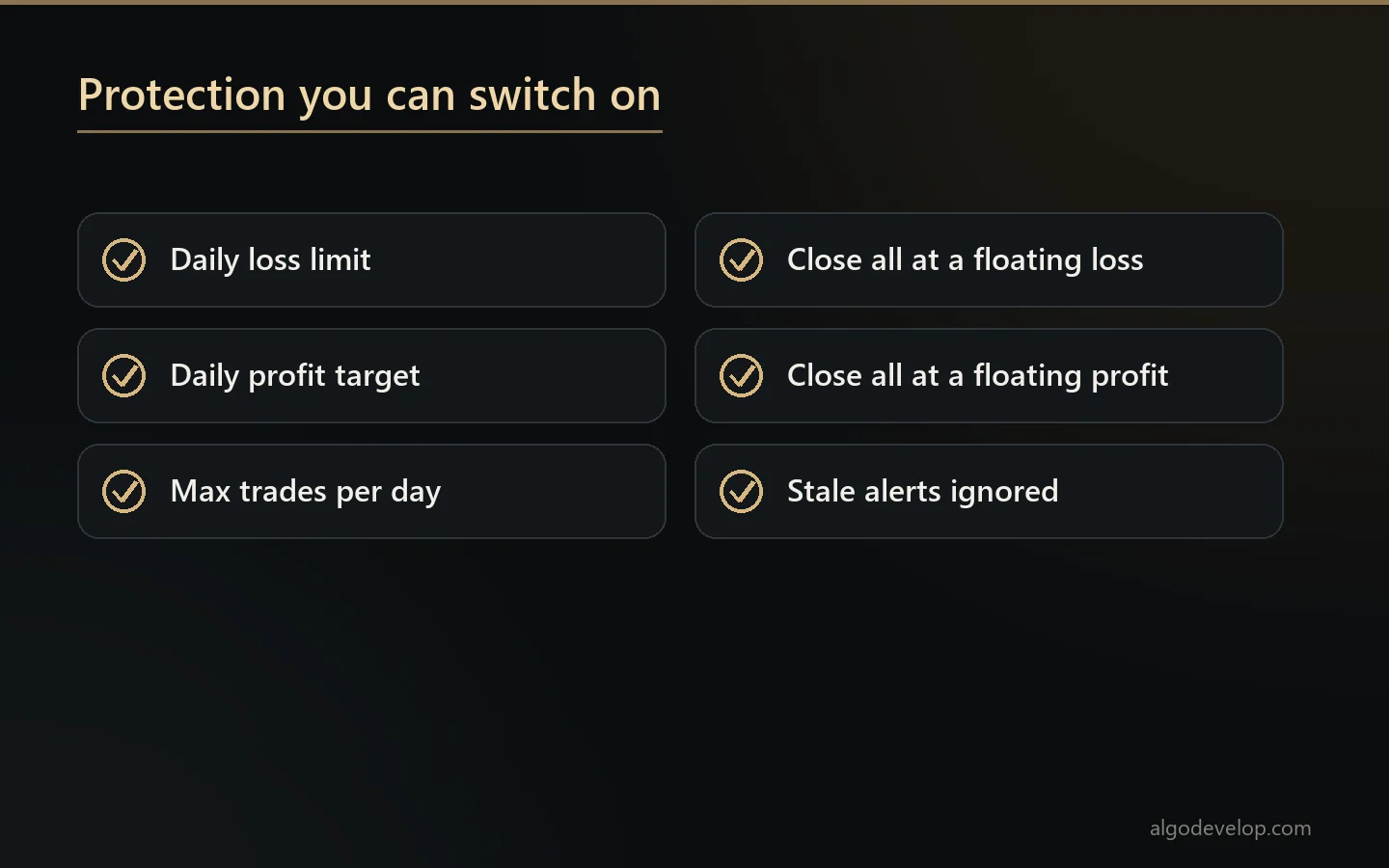
An automated strategy keeps trading a bad day until something stops it. So the TradingView to MT4/MT5 copier carries its own brakes, and every one of them stays off until you switch it on:
- Daily profit target – stop when the day has gone well enough.
- Daily loss limit – stop when it has not.
- Maximum trades per day – a hard ceiling, whatever the strategy wants.
- Close everything at a floating profit figure, or at a floating loss figure.
There is also a martingale option, off by default, with a hard lot cap. It exists because people ask for it, and the cap exists because that is the failure that empties accounts.
Every feature in the TradingView to MT4/MT5 copier
| Feature | What it does |
|---|---|
| Works with any TradingView alert | Strategy, indicator or manual alerts – anything TradingView can send to a webhook on a plan that allows it. |
| Private relay | Your alert goes to a private address, and the EA collects it from there four times a second by default. |
| Reads price, SL & TP from the alert | Uses your strategy’s own levels whenever the alert carries them. |
| Automatic lot sizing | Fixed lot, automatic money management, risk percent or risk amount. |
| Entry modes | Market, alert price with a market fallback, or alert price only. |
| Partial exits | Four stages by R multiple or by points. |
| Break-even & trailing | Lock-in stop, break-even at a multiple of risk, and a stepped trailing stop. |
| Strategy keys | Every key gets its own magic number, position caps and close alerts. |
| Symbol prefix & suffix | XAUUSD from TradingView reaches XAUUSD.m or #XAUUSD at your broker. |
| One feed, many accounts | Every terminal on the same feed takes the alert; key lists split strategies between them. |
| Reliability guard | Drops repeats, stale alerts and test alerts. |
| Dashboard & diagnostics | On-chart signal log, open positions and equity curve, plus a mode that explains why nothing traded. |
| Runs on your own account | Your broker, your terminal, your control. |
Why alerts get missed, and what stops it
Most complaints about a TradingView to MT4/MT5 copier are not about the strategy. Instead, they are about an alert that arrived and then nothing happened, or something happened much later at a price that made no sense.
- The EA ignores stale alerts. So anything older than the age you set never fills late. A webhook that turns up minutes late should not open a trade at today’s price on old reasoning.
- Repeats count once. The same alert arriving twice does not open two trades, and the EA remembers where it got to across a restart.
- Test alerts do nothing. TradingView’s test fires, and any type the EA does not know, simply fall away.
- The EA polls the relay, so it never hangs on it. If an answer is slow, the EA gives up after a timeout instead of blocking the terminal. On a PC with several charts, one chart fetches for all of them.
- Symbols match your broker. Set the prefix and suffix once, and XAUUSD from TradingView reaches XAUUSD.m on your chart.
- A dashboard sits on the chart. It shows the recent signal log, your open positions and an equity curve. So “did it see my alert?” becomes a question you answer by looking, not by guessing.
- A diagnostics mode explains silence. Switch it on, and the log spells out each decision as the EA makes it. If MetaTrader blocks the relay address, the EA says that plainly too.
Setting up the TradingView to MT4/MT5 copier
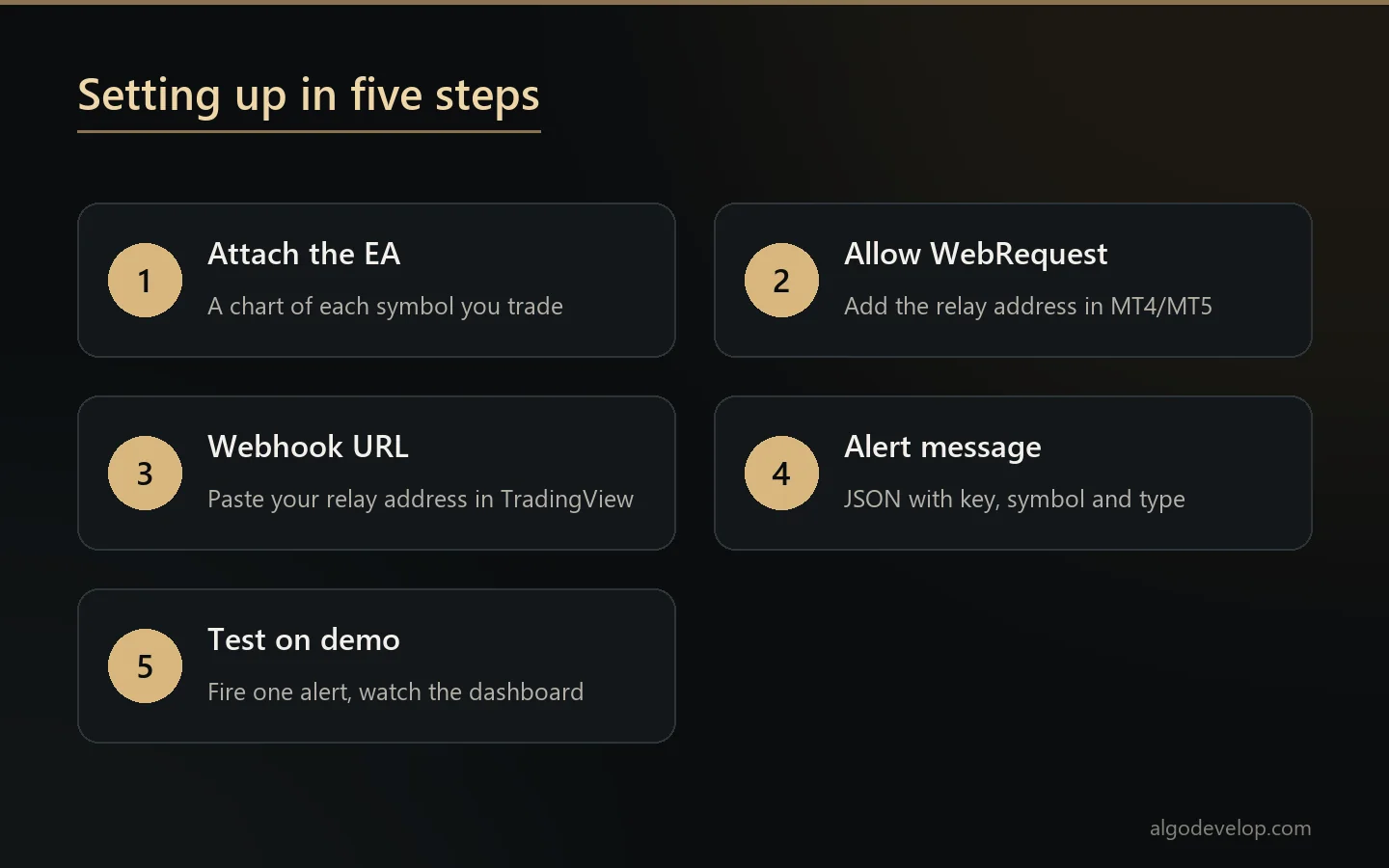
- Attach the TradingView to MT4/MT5 copier to a chart of each symbol you trade. The EA trades the symbol of the chart it sits on, so gold alerts need a gold chart.
- In MetaTrader, open Tools, Options, Expert Advisors and add the relay address under Allow WebRequest.
- In TradingView, paste your relay address into the alert’s Webhook URL box, then put the JSON line with your key in the message.
- Next, set your lot rule, your stop loss mode and your daily limits.
- Finally, fire one alert by hand and watch the dashboard. Then run it on a demo account for a few days before anything real.
You need a TradingView plan that allows webhook alerts – that is TradingView’s rule, not ours. TradingView’s own guide on how to configure webhook alerts shows where the Webhook URL box sits. On the MetaTrader side, algo trading has to be on, as the MetaTrader 5 algo trading help explains.
The copier runs inside your existing terminal, so it works with MetaTrader 4 and MetaTrader 5 exactly as your broker installed them. First-time setup takes about fifteen minutes, and we do it with you over WhatsApp or Telegram if you would rather watch it once. Our guide on how to connect TradingView to MT4/MT5 also covers the same ground step by step.
TradingView, or another source?
A TradingView to MT4/MT5 copier automates a system you wrote. If what you want to follow is somebody else’s calls, one of these fits better:
- Telegram to MT4/MT5 copier – for channels and groups.
- WhatsApp to MT4/MT5 copier – for WhatsApp groups.
- Discord to MT4/MT5 copier – for Discord servers.
- MT4 to MT5 copier – to mirror one terminal into others.
- Multi-broker copy trading – when one alert has to reach accounts on different platforms.
Not sure which fits? Tell us where your signals come from and we will say plainly which one you need. You can also see every tool on the copy trading page. If the strategy itself still needs writing, see TradingView strategy automation or Pine Script development.
TradingView to MT4/MT5 copier – frequently asked questions
Do I need a paid TradingView plan?
Yes. Webhook alerts need a paid plan on TradingView’s side, and the TradingView to MT4/MT5 copier runs on webhooks. That is TradingView’s rule rather than ours.
Does it work with strategy alerts as well as indicator alerts?
Yes. Strategy alerts, indicator alerts and alerts you set by hand all work. Anything TradingView can send to a webhook, the copier can act on.
What does the alert message look like?
One short line of JSON with a key, the symbol and the type: buy, sell, buyclose or sellclose. You can also add your own entry price, stop loss and take profit. If your indicator can only send plain text, tell us first, because that needs a matching version of the EA.
Can I run more than one strategy?
Yes. Every key becomes its own slot, with its own magic number, position caps and close alerts. So the TradingView to MT4/MT5 copier manages each strategy’s trades apart, and you can tell them apart afterwards.
Can an alert just close my trades?
Yes. A buyclose alert closes that strategy’s buys, and a sellclose closes its sells, along with any pending orders on that side. It doubles as a manual exit that is one alert away.
What if my alert arrives late?
The EA ignores anything older than the age you set, rather than filling it at a price that no longer makes sense. It also drops repeats, so the same alert arriving twice does not open two trades.
My strategy calculates its own stop loss. Can it use that?
Yes. Send it in the alert, and the EA uses it whenever it is there. Otherwise the copier places the stop itself, either a fixed distance away or behind the high or low of the last few bars, plus a gap.
Can it place a pending order at my exact alert price?
Yes. The TradingView to MT4/MT5 copier lets you choose how strictly. Market ignores the price. Alert price with a fallback places a pending order and only fills at market when the level is too close. Alert price only never sends a market order at all.
What stops a bad day running away?
A daily loss limit, a daily profit target, a cap on trades per day, and close-everything levels for floating profit and floating loss. All of them stay off until you switch them on.
Which chart do I attach it to?
A chart of each symbol you trade. The EA only trades the symbol of its own chart, so gold alerts need the EA on a gold chart. Then set your broker’s prefix or suffix once, and XAUUSD from TradingView matches XAUUSD.m.
How do I tell whether it saw my alert?
First, look at the dashboard on the chart. It shows the recent signal log, your open positions and an equity curve. If something still is not trading, switch on diagnostics mode, and the log spells out why each decision went the way it did.
How much does a TradingView to MT4/MT5 copier cost?
It depends on how many strategies you want running, whether your alerts carry their own levels, and how much of the exit handling you need. Setup help comes with it either way. Tell us what your strategy does and we will quote it plainly: ask for a quote.