How to Connect TradingView to MT4 and MT5 (Step-by-Step)
Published July 19, 2026 · Updated October 14, 2026
TradingView has great charts and Pine Script, but its alerts cannot place a trade in MetaTrader on their own. So most traders do it by hand: an alert fires, you switch to MetaTrader and you type the order. That is slow, and easy to miss. Once you connect TradingView to MT4 and MT5, your alerts turn into live trades in MetaTrader by themselves.
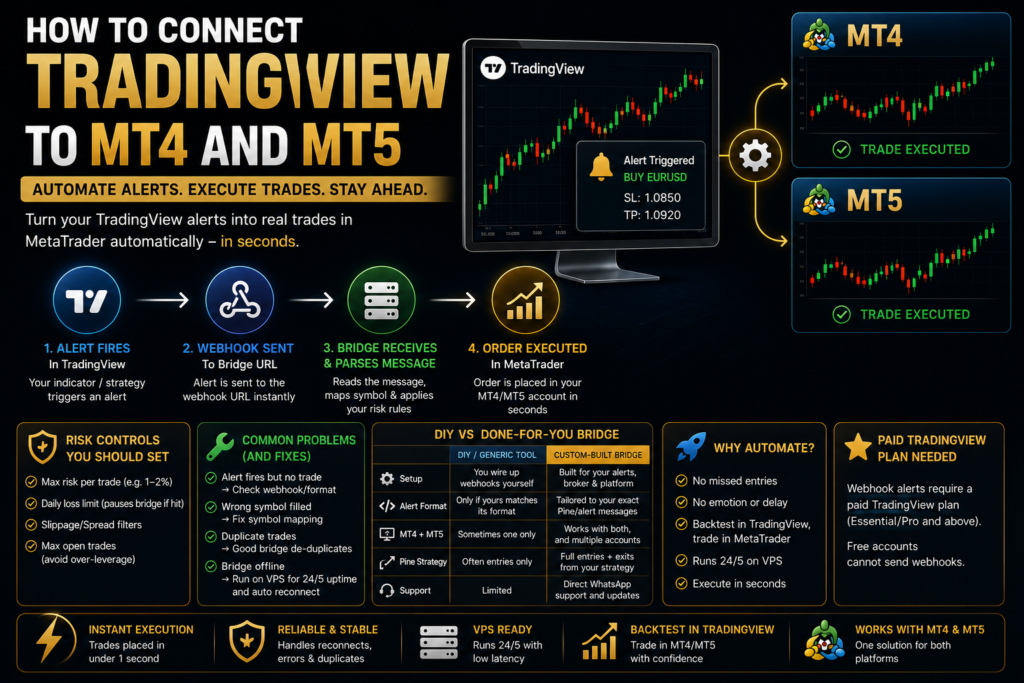
This step-by-step guide explains how the connection works with webhooks, and how to set it up on both platforms. It also covers what a paid TradingView plan is for, and when a done-for-you bridge is worth it. It is general education about software, not financial or investment advice.
On this page
- What it means to connect TradingView to MT4/MT5
- Why automate TradingView to MetaTrader?
- What you need before you start
- How it works: alert, webhook, bridge, order
- How to connect TradingView to MT4 and MT5, step by step
- Indicator alerts vs Pine Script strategy alerts
- Does TradingView need a paid plan?
- Risk controls every trader should set
- Common problems, and how to fix them
- DIY vs a done-for-you bridge
- A ready-made way to connect TradingView to MT4/MT5
- Frequently asked questions
What it means to connect TradingView to MT4/MT5
TradingView can send an alert whenever your indicator or Pine Script strategy triggers. On its own, though, that alert is just a notification. A connector, often called a bridge, catches the alert and turns it into a real order in your MetaTrader terminal. Along the way, it applies your lot size, stop loss and take profit.
In short, your strategy and charts stay in TradingView, while the execution happens in MT4 or MT5. Nobody has to type anything.
Why automate TradingView to MetaTrader?
- No missed entries, because the bridge acts as soon as your alert arrives.
- No emotion or hesitation, since the rules run the same way every time.
- The right tool for each job: you backtest in TradingView, then trade in MetaTrader.
- It runs 24/5, so on a VPS it keeps working while your own computer is off.
What you need before you start
- A TradingView plan with webhook alerts. Webhooks need a paid TradingView plan, so the free plan cannot send them. TradingView also allows webhooks only once your account has two-factor authentication on.
- An MT4 or MT5 account with a broker that allows automated trading.
- A bridge that receives the webhook and places orders in MetaTrader, either off the shelf or built for you.
- A VPS, ideally, so the bridge stays online all week.
You do not need to code, either. The bridge handles the technical side, while you set the rules.
How it works: alert, webhook, bridge, order
- First, your TradingView alert fires and sends a short message, the webhook, to a web address.
- Next, the bridge receives that message and reads the trade details in it.
- Then it maps the symbol to your broker’s exact name and applies your risk rules.
- Finally, it places the order in MT4 or MT5.
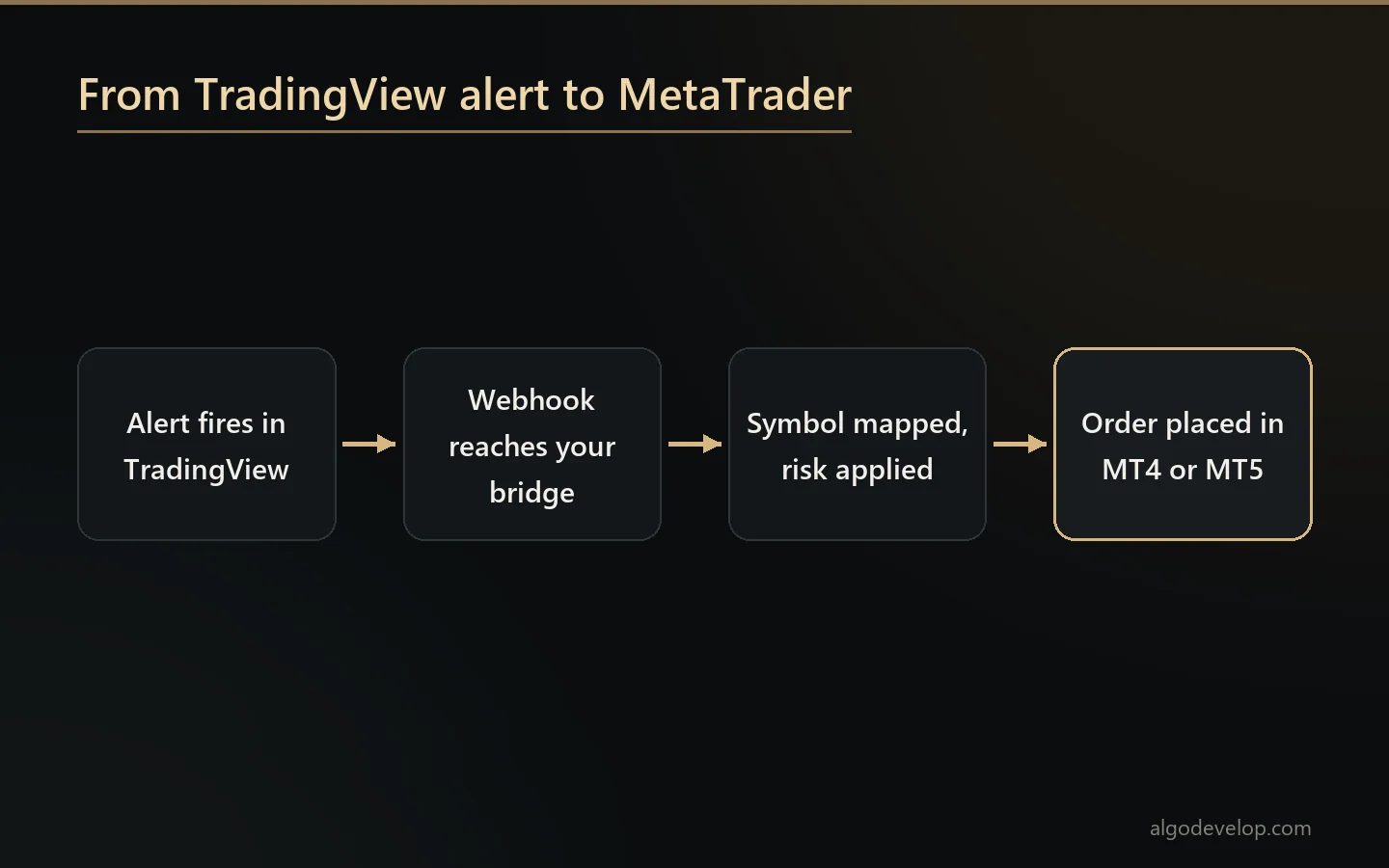
The message inside the alert is the key. It must state the action and the details clearly, for example BUY EURUSD SL=1.0850 TP=1.0920 RISK=1%. Every bridge reads its own format, though. Ours, for instance, takes one short line of JSON with a key, the symbol and the type.
How to connect TradingView to MT4 and MT5, step by step
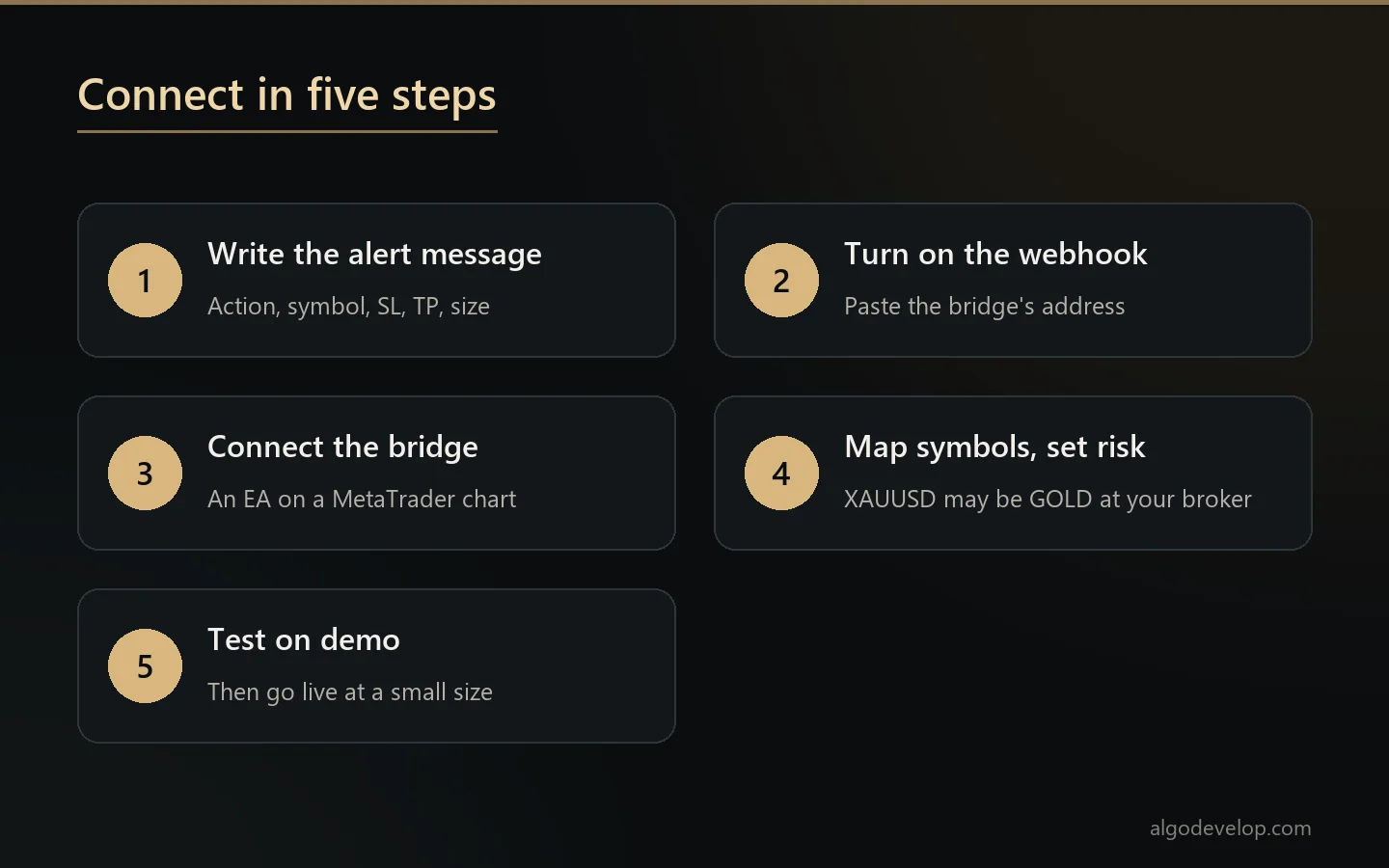
Step 1: Write a precise alert message
Create the alert with the clock icon, then fill in the Message box: action, symbol, stop loss, take profit and size. Write it in the exact format your bridge reads. TradingView placeholders such as {{ticker}} and {{close}} can fill in live values for you.
Step 2: Turn on the webhook
In the alert’s Notifications tab, tick Webhook URL and paste the bridge’s address. From then on, TradingView sends your message there each time the alert fires. TradingView’s own webhook guide shows the box, and it notes that only ports 80 and 443 work.
Step 3: Connect the bridge to MT4 or MT5
Next, link the bridge to your terminal, usually with a small Expert Advisor on a chart or a connector app. With our copier, you also add its relay address under Tools, Options, Expert Advisors, Allow WebRequest. Then switch on algo trading, or nothing will trade.
Step 4: Map symbols and set your risk
- Symbol mapping: TradingView’s
XAUUSDmay beGOLDorXAUUSD.mat your broker, so map it once. - Risk rules: set a lot size or risk percent, a trade cap, a daily loss limit and spread or slippage filters.
Step 5: Test on demo, then go live
Fire the alert by hand on a demo MT4 or MT5 account. Then check that the trade opened with the right stop loss and take profit. Once it behaves as expected, switch to live, at a small size first.
Indicator alerts vs Pine Script strategy alerts
- Indicator alerts fire on a condition, such as RSI crossing 30. They are simple and reliable for entries.
- Strategy alerts fire on each order a Pine Script
strategy()makes, so they carry entries and exits. Placeholders such as{{strategy.order.action}}fill in the side for you.
A good bridge handles both. So if you have a Pine strategy you want traded live, that is exactly the kind of setup a bridge suits. Still need the strategy itself? Then see TradingView strategy automation or Pine Script development.
Does TradingView need a paid plan?
Yes. Webhook alerts are a paid feature, so you need a paid TradingView plan to send alerts to a webhook URL. The MetaTrader side does not need one, because only TradingView’s webhook does. Plans change, so check TradingView’s current list before you subscribe.
Risk controls every trader should set
- Max risk per trade, such as 1-2% of the account.
- A daily loss limit that pauses the bridge once you hit it.
- Slippage and spread filters that skip bad fills.
- Max open trades, so a burst of alerts cannot over-leverage you.
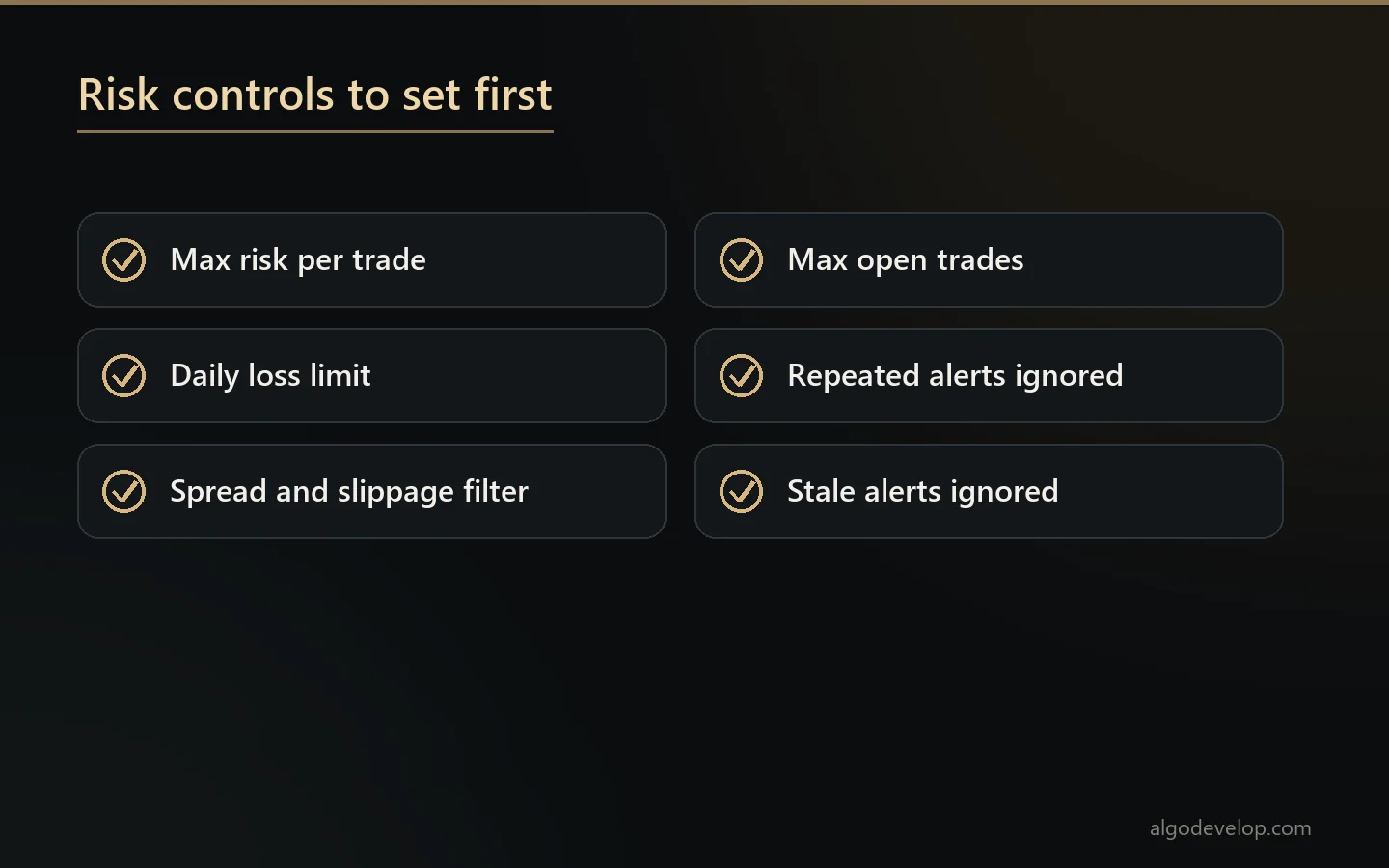
You stay in control, because the bridge only runs the rules you set, on your own account.
Common problems, and how to fix them
- The alert fires but nothing trades. Usually the message does not match what the bridge expects, so check the format first.
- The wrong symbol fills. In that case, fix the symbol mapping to your broker’s names.
- Trades double up. A good bridge drops repeated alerts, so turn that on.
- The bridge goes offline. Run it on a VPS so it stays up all week, and pick a bridge that reconnects by itself.
DIY vs a done-for-you bridge
| DIY / generic tool | Custom-built bridge (done-for-you) | |
|---|---|---|
| Setup | You wire up webhooks yourself | Built for your alerts, broker and platform |
| Alert format | Only if yours matches its format | Tailored to your exact Pine or alert messages |
| MT4 + MT5 | Sometimes one only | Works with both, and with several accounts |
| Pine strategy | Often entries only | Entries and exits from your strategy |
| Support | Limited | Setup help over WhatsApp or Telegram, plus updates |
For simple indicator alerts, a generic tool can work. But a bridge built for you is the safer choice for a Pine strategy, or when you need MT4 and MT5. It also suits anyone who simply wants it to work reliably.
A ready-made way to connect TradingView to MT4/MT5
Our TradingView to MT4/MT5 copier is one ready-made bridge. Because a home PC or VPS does not normally have a public web address, your alert goes to a private relay address instead. Then an Expert Advisor on your chart collects it, four times a second by default, and places the order.
Only the alert passes through that relay. Your broker login stays in your own terminal, and the orders leave from your own MT4 or MT5. In addition, the EA ignores stale alerts, repeats and TradingView’s test fires.
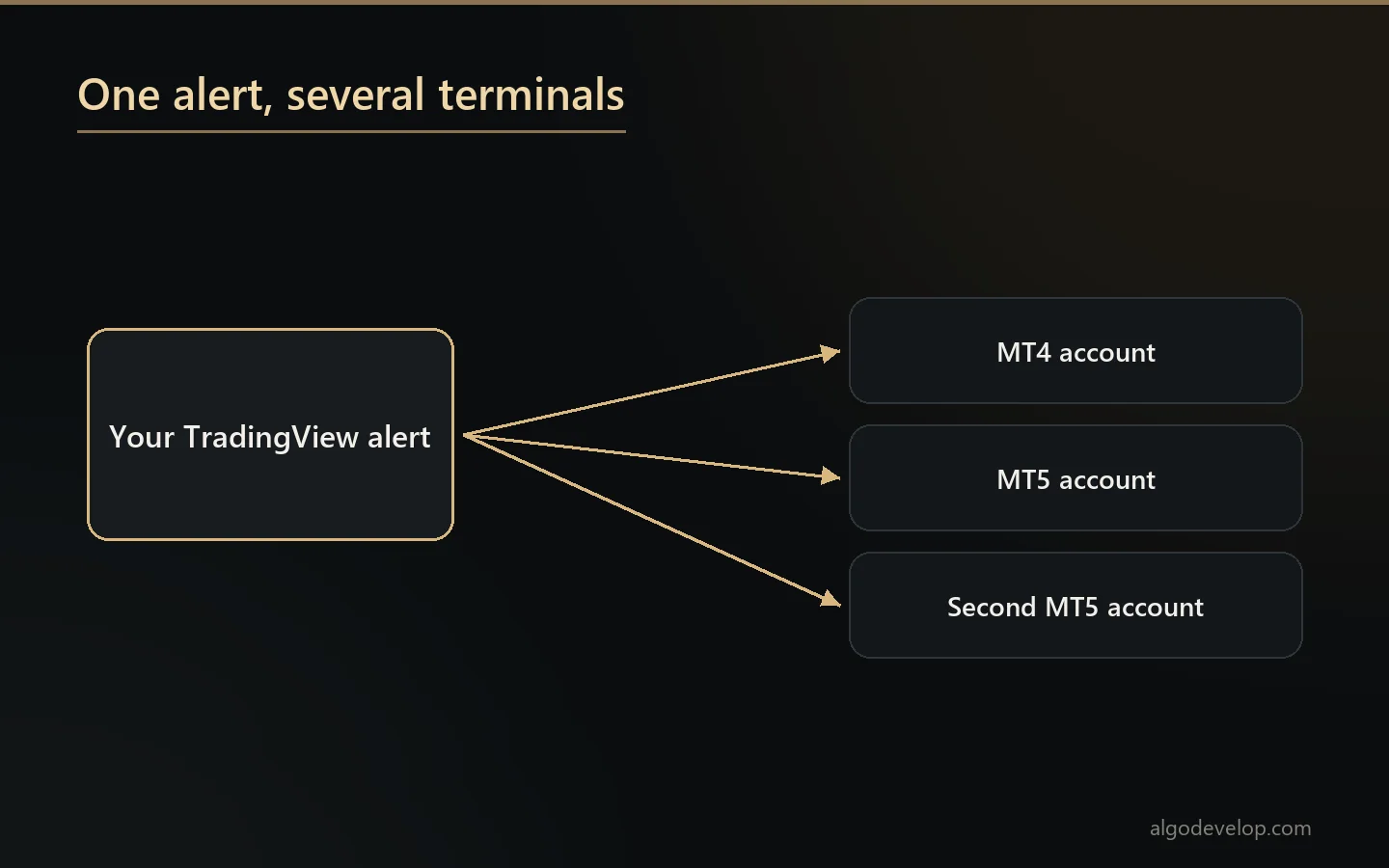
Trading somewhere other than MetaTrader? Then the same idea works with the TradingView to Indian broker copier and the TradingView to Binance bot. There is a Delta Exchange version too. If your signals come from a channel instead, read how to copy Telegram signals to MT4 and MT5.
We build software only, so we do not sell signals, give investment advice or manage funds. To have a bridge built around your own alerts, ask for a quote.
Connect TradingView to MT4 and MT5 – frequently asked questions
Do I need a paid TradingView plan?
Yes. Sending alerts to a webhook needs a paid TradingView plan, so a free account cannot do it. TradingView also asks for two-factor authentication before it sends webhooks.
Can I automate a Pine Script strategy, not just indicator alerts?
Yes. A bridge can run both the entries and the exits from the alerts of a Pine strategy() script.
Does it work with both MT4 and MT5?
Yes. The same TradingView alerts can go to MT4, to MT5 or to several accounts at once. Not sure which platform suits you? Then read MT4 vs MT5.
How fast is execution?
That depends on TradingView’s delivery, your connection and your broker. With our copier, the EA checks the relay four times a second by default. It also ignores any alert older than the age you set, so a late alert never fills at a stale price.
Can I connect TradingView to MT4 and MT5 for free?
Not fully, because the webhook itself needs a paid TradingView plan. MetaTrader, on the other hand, comes free with your broker account.
Can an alert close a trade, not just open one?
Yes. With our copier, a buyclose alert closes that strategy’s buys and a sellclose closes its sells. It also deletes any pending order left on that side.
Why does my alert fire but no trade opens?
Most often the message format does not match what the bridge reads. Otherwise, check that algo trading is on in MetaTrader and that the symbol maps to your broker’s name.
Is this legal and safe?
It is trade-execution software that runs on your own account with your own settings. It is not a managed account, a tips service or advice. So you make your own trading decisions and stay responsible for them.
Want this built for you?
We develop it as a service — reliable, tested, and yours to own.
Message Us on WhatsApp