TradingView to Indian Broker Copier
A TradingView to Indian broker copier turns the alerts from your TradingView charts into real orders at your Indian broker. It works with ten brokers: Groww, Zerodha, Angel One, Upstox, ICICI Direct, 5paisa, Dhan, Fyers, Kotak Neo and Alice Blue.
It runs on your own PC or VPS, with your own API keys. Each alert comes straight from TradingView’s servers. Each order then leaves from your static IP, through the broker’s own API, and nothing sits in between.
On this page
- What a TradingView to Indian broker copier actually does
- How the TradingView to Indian broker copier works, step by step
- The webhook, port 80 and your static IP
- What goes in the alert message
- Options automation: BUY CE, BUY PE and EXIT
- Ten brokers, many accounts and Paper mode
- Stops, ceilings and the kill switch
- Every feature in the TradingView to Indian broker copier
- Setting up the TradingView to Indian broker copier
- TradingView, Telegram or a custom build?
- Frequently asked questions
What a TradingView to Indian broker copier actually does
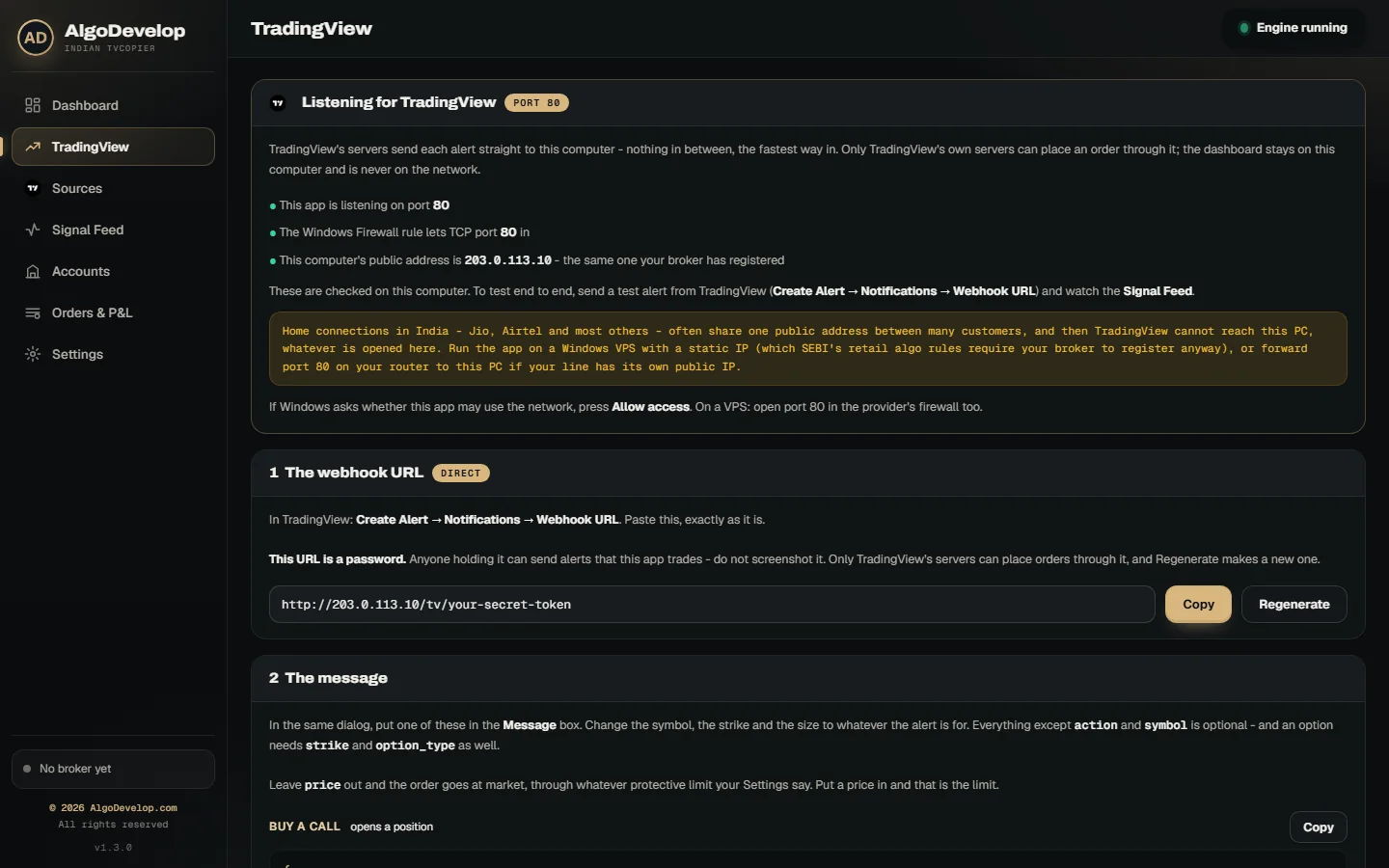
TradingView can watch your chart all day, but it cannot place an order at your broker. What it can do is call a web address the moment an alert fires. That call is a webhook, and a TradingView to Indian broker copier is the program waiting at the other end.
You write the alert message once, as a few lines of JSON, and TradingView fills in the numbers each time. So the app never guesses. It checks each field, then places the order or refuses it with a reason.
Take this alert: {"action":"BUY","symbol":"NIFTY","strike":24600,"option_type":"CE","lots":1}. The app buys one lot of the NIFTY 24600 CE, nearest expiry, at each account you have switched on. An account with a share of 2 buys two lots.
How the TradingView to Indian broker copier works, step by step
- Your alert fires. It can be a price cross, an indicator or a Pine strategy order.
- TradingView posts it to the app. The alert arrives on port 80 at once, and the app takes it only from TradingView’s own server addresses.
- The app reads the JSON. It picks out the action, symbol, strike, CE or PE, size, price and stop. A field that does not add up stops the alert right there.
- Your gates run next. First come the kill switch, the trading window and the repeat check, then each account’s own ceilings.
- Each broker finds the contract in its own instrument list. Nothing about the symbol, lot size or price step is a guess.
- The order goes out from your static IP, as a protective limit order by default.
- The journal records it. Every alert, order and refusal appears in the Signal Feed with the broker’s answer.
The webhook, port 80 and your static IP
TradingView sends webhooks only to port 80 or 443, as its webhook alerts help page explains. So the app runs a small listener on port 80 that answers one address: your alert URL. The dashboard itself stays on your computer, away from the internet.
The URL ends in a long random token, so treat it like a password. Even so, a leaked URL is not enough: the app refuses alerts that do not come from TradingView. Press Regenerate and the old URL stops working at once. You can also require a secret inside every alert body.
Why your static IP decides where it runs
SEBI’s framework for retail algo trading has applied since 1 April 2026. Under it, an Indian broker takes API orders only from a static IP you have registered with it. The TradingView to Indian broker copier sends every order from its own computer, so you register that address.
The Dashboard shows the address your broker sees, with a Copy button. If it changes, the app warns you, since a broker refuses orders from an IP it does not know.
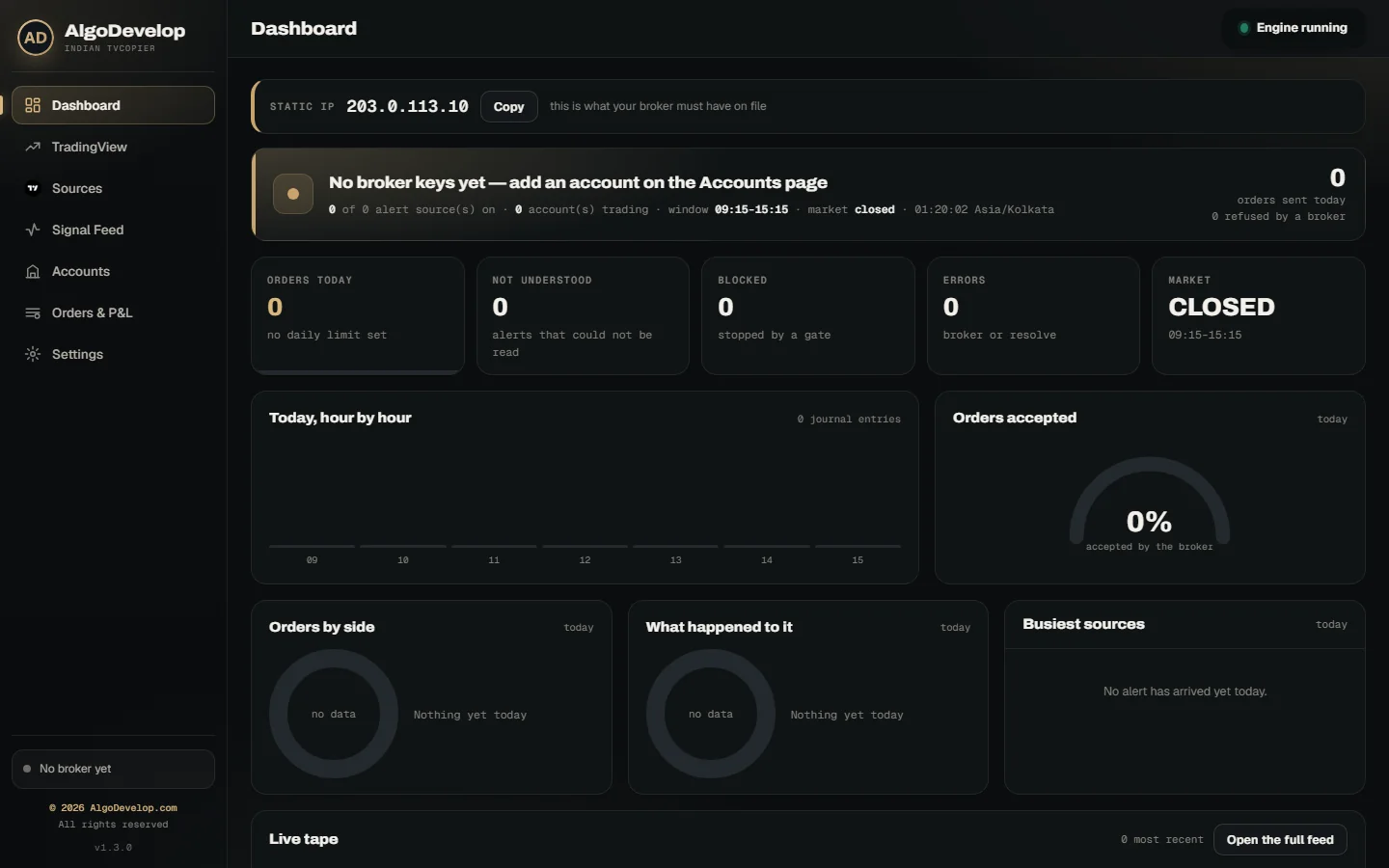
The same rule decides where the app should run. Most home and mobile internet in India shares one public address between many users. TradingView cannot reach a PC behind it. A Windows VPS with a fixed IP solves both problems at once. A static IP from your internet provider can also work, with port 80 forwarded on your router.
With more than one internet connection, each account can even use its own. Two accounts at the same broker can then trade side by side, each from its own registered address.
What goes in the alert message
The TradingView page lists ready-made messages, each with a Copy button. Change the symbol, strike and size, then paste one into your alert’s Message box. Only the action and the symbol are a must, while an option also needs CE or PE.
- BUY or SELL opens a position in that exact contract. SELL opens a short, so it never closes anything.
- EXIT closes what the broker says you hold, not the size the entry asked for. It also cancels an entry still waiting there.
- Price, stop and targets are optional. A price makes it a limit order, and the stop can become a real order at the broker.
- Cash equity takes a quantity in shares, for example 50 RELIANCE.
- Pine strategies work too: TradingView fills in {{strategy.order.action}} and {{strategy.order.contracts}} for you.
- A source name gives the alert its own row on the Sources page, with its own switch, share and accounts.
What the app refuses, and why
An alert can still be wrong, so these never reach your broker:
- A strike that cannot exist, such as 24587.35 on NIFTY. The app refuses rather than rounds.
- An unfilled placeholder, such as a literal {{close}}, which would otherwise turn a limit order into a market order.
- An index level as a premium, such as a price of 24587 on an option.
- A futures alert, because this app trades options and NSE cash equity only.
- Half an order, such as equity with no quantity, or a strike with no CE or PE.
Each refusal lands in the Signal Feed with its reason and the exact JSON behind it.
Options automation: BUY CE, BUY PE and EXIT
Many option strategies want a call or a put at about a certain price, not one exact strike. So an alert can say BUY CE or BUY PE with no strike. The TradingView to Indian broker copier then picks the contract:
- By live premium. It buys the strike whose premium sits nearest your target: ₹200 to start with, or the alert’s own premium field.
- Within your band. If even the nearest premium is further off than your tolerance, 30% to start with, the app skips the trade. The journal names the nearest strike it found.
- Nearest valid expiry. Today’s expiry counts until 14:30, or your own cut-off. After that the next expiry takes over.
- As a limit order at the live premium plus your small buffer, never a blind market order.
- One position per side, if you like: no new CE while one is open, and the same for PE.
Exits need no strike either. EXIT CE closes every call you hold on that symbol, EXIT PE every put and EXIT NIFTY both. EXIT ALL with no symbol squares off every position at every account, after it cancels the orders still working.
Ten brokers, many accounts and Paper mode
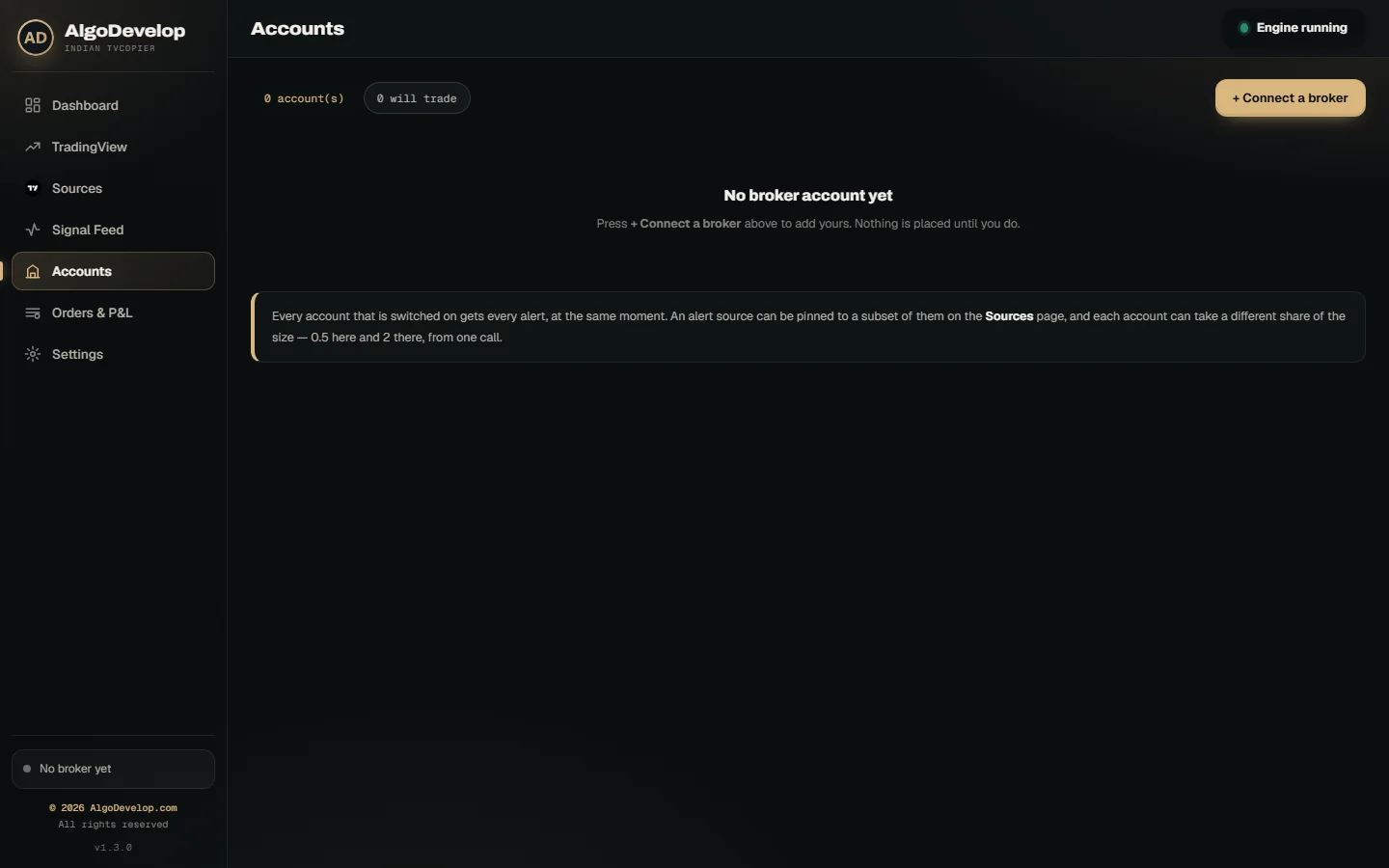
The TradingView to Indian broker copier talks to each broker through its official API. Orders show up in your normal order book.
- Zerodha through Kite Connect, with a Log in with Kite button that saves the day’s token.
- Angel One through SmartAPI. The app makes your TOTP codes itself, so it signs in on its own.
- Upstox, Dhan and Fyers through their own APIs, with your access token.
- Groww, ICICI Direct, 5paisa, Kotak Neo and Alice Blue through their published APIs as well.
One alert can reach several accounts at once. Each has its own broker, keys, share and ceilings. A share of 0.5 halves every order, and 2 doubles it. If one broker says no, the others still trade.
Any account can also run in Paper mode. It reads contracts and live prices from your real broker, but the app fills each order in its own book. Exits, stops and the kill switch behave as they will live. That way you can watch your alerts trade before real money moves.
Stops, ceilings and the kill switch
Each account carries its own rules, so a small and a large account can follow the same alerts.
- Stop loss as a real order. Once the entry fills, the alert’s stop can go to the broker as an SL or SL-M order. Angel One gets the SL kind, since it bans market orders for algos.
- Breakeven and trailing. The stop can move to your entry once the trade is far enough ahead, then trail the best price. It only ever moves in your favour.
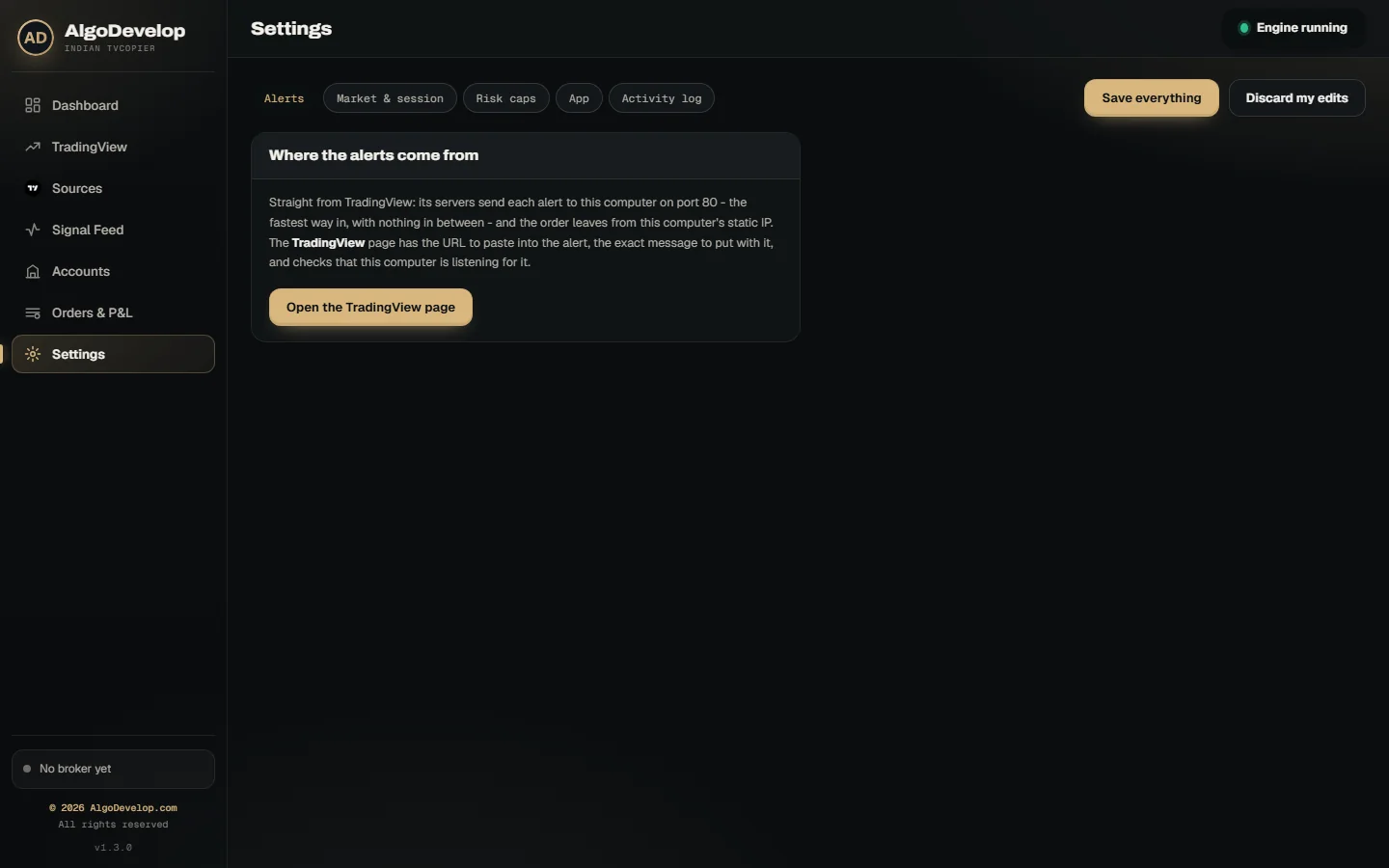
- Ceilings. Cap the orders in a day (10 to start with), the lots or rupees per order and the open positions.
- Price guards. Market signals become protective limits by default. An optional guard also refuses an entry when the price has run too far.
- What it may trade. Switches cover options, equity and short selling, plus a list of allowed exchanges.
The whole app also keeps a trading window, 09:15 to 15:15 by default. It adds trading days, a repeat window for duplicate alerts and an optional square-off time. Above them sits the kill switch: one press refuses every alert until you start the engine again. Square off everything is a separate button, so stopping new trades never closes old ones by accident.
Every feature in the TradingView to Indian broker copier
| Feature | What it does |
|---|---|
| Direct TradingView webhook | Alerts arrive on port 80 straight from TradingView’s servers; the app refuses alerts from any other address. |
| Ten Indian brokers | Groww, Zerodha, Angel One, Upstox, ICICI Direct, 5paisa, Dhan, Fyers, Kotak Neo and Alice Blue, through their own APIs. |
| One alert, many accounts | Each account has its own broker, share of the size, ceilings and, if you need it, its own static IP. |
| Paper mode | Live prices from your real broker, with every order filled in the app’s own book. |
| BUY CE / BUY PE by premium | No strike needed: the app picks the strike nearest your target premium, nearest valid expiry, as a limit order. |
| EXIT, EXIT CE, EXIT PE, EXIT ALL | Closes what each account actually holds and cancels orders still working on it. |
| Real stop orders | SL or SL-M at the broker once the entry fills, with optional breakeven and trailing. |
| Alert checks | Refuses impossible strikes, unfilled placeholders, index levels in premium fields and futures alerts. |
| Sources | Each named alert gets its own switch, share of the size and set of accounts. |
| Ceilings and guards | Daily order cap, lot cap, value cap, open-position cap, slippage guard and protective limits. |
| Trading window and square-off | Nothing fires outside your hours, and everything can square off at a time you choose. |
| Kill switch | One press refuses every alert until you start the engine again. |
| Alert Lab | Paste an alert body and see the contract, size and price it would use, without trading. |
| Signal Feed | Every alert, order and refusal, with the reason and the JSON behind it. |
| Static IP band | Shows the address your broker sees, with a Copy button and a warning if it changes. |
Setting up the TradingView to Indian broker copier
- Run the app on a Windows PC or VPS with a static IP, and register that IP with your broker.
- Open port 80. A button on the TradingView page asks Windows Firewall to allow it. On a VPS, open it in the provider’s firewall too.
- Add your broker account, press Test the connection and start it in Paper mode with a small share.
- Copy the webhook URL and a message into a new TradingView alert.
- Paste your real alert bodies into the Alert Lab before the market opens, and check each contract, size and price.
- Let one alert fire and watch the Signal Feed. Switch to Real only after a full day goes the way you expect.
Want to know if the URL reaches the computer? Open it in a browser, since that check never places an order. We can also set up the TradingView to Indian broker copier with you, on your own PC or VPS. Just ask for a quote.
TradingView, Telegram or a custom build?
A TradingView to Indian broker copier suits traders whose signals come from their own charts. If that is not quite you, one of these may fit better:
- Telegram to Indian broker copier – when the calls come from a Telegram channel instead.
- TradingView to MT4/MT5 copier – for forex and CFD accounts on MetaTrader.
- TradingView strategy automation – when the Pine strategy itself needs writing first.
- Indian stock market automation – for a custom system beyond alerts.
You can also browse every Indian broker we automate. Still unsure? Tell us your broker and your strategy and we will say plainly which one you need.
TradingView to Indian broker copier – frequently asked questions
Which Indian brokers does it work with?
Ten: Groww, Zerodha, Angel One, Upstox, ICICI Direct, 5paisa, Dhan, Fyers, Kotak Neo and Alice Blue. You can run several accounts at once, at one broker or at several.
Why does it need a static IP?
Since 1 April 2026, an Indian broker accepts API orders only from a static IP you have registered with it. The app sends every order from its own computer, so you register that address. The Dashboard shows it with a Copy button.
Can it run on my home PC?
Only if TradingView can reach your PC on port 80 and your IP never changes. Most home and mobile connections in India share one public address, so TradingView cannot reach them. A Windows VPS with a fixed IP is the usual answer.
Is the webhook URL safe?
Treat it like a password and never share a screenshot of it. Even so, the TradingView to Indian broker copier takes orders only from TradingView’s own servers. You can also press Regenerate at any time, or require a secret in the alert body.
Can it choose the option strike for me?
Yes. Send BUY CE or BUY PE with no strike. It then buys the strike whose live premium is nearest your target. If none is close enough, it skips the trade and says why.
How do exits work?
An EXIT alert closes what each account actually holds in that contract, as the broker reports it. EXIT CE and EXIT PE close one side of a symbol, and EXIT ALL squares off everything. A SELL alert is never an exit, because SELL opens a short.
Does it trade futures?
Not yet. The TradingView to Indian broker copier trades options and NSE cash equity. It refuses a futures alert with a clear reason, rather than turning it into a different order.
Do I have to log in to my broker every morning?
It depends on the broker. Angel One signs in by itself, because the app makes your TOTP codes. Zerodha takes one click on Log in with Kite. Most others issue a token that lasts one trading day, which you paste in each morning.
Can I test it without real orders?
Yes, in two ways. The Alert Lab reads any alert body without trading it. Paper mode then runs the whole TradingView to Indian broker copier on live prices, with no real orders.
Do I need a paid TradingView plan?
Webhook alerts are a TradingView feature, so TradingView decides which of its plans include them. Check your plan before you set anything else up.
How much does it cost?
It depends on your broker, your number of accounts and whether we set it up on your VPS. Tell us those and we will quote it plainly: ask for a quote.