TradingView to Delta Exchange Bot
A TradingView to Delta Exchange bot turns your TradingView alerts into real orders on your own Delta Exchange account. TradingView sends each alert straight to the app through a webhook. Then the app places it on Delta India or Delta Global, with your size, your leverage and the stop loss the alert names.
Your chart and your strategy decide when to trade. The app handles the order instead, on every Delta account you switch on, even while you are away from the screen.
On this page
- What a TradingView to Delta Exchange bot actually does
- How the TradingView to Delta Exchange bot works, step by step
- The webhook: how an alert reaches the app
- The alert message: what it must contain
- Futures, options, MOVE, spot and binary on Delta
- Bracket stop loss, size and leverage
- India or Global, and the journal
- Every feature in the TradingView to Delta Exchange bot
- Setting up the TradingView to Delta Exchange bot
- Delta Exchange, or one of the others?
- Frequently asked questions
What a TradingView to Delta Exchange bot actually does
A TradingView to Delta Exchange bot links an alert on TradingView to an account on Delta. As soon as the alert fires, TradingView posts its message to the app. The app then reads it, checks it, and sends the order to Delta with your own API key.
Unlike a Telegram copier, nothing on this side needs AI. A TradingView alert carries exact fields, so the app trades exactly what you wrote: the coin, the side, the market, the size, the stop loss and the target. If a field is wrong, nothing trades; instead, the journal says why.
For example, a Pine strategy on DELTAIN:BTCUSD.P that goes short becomes a market sell on every Delta perpetual futures account you have switched on. If the alert asks for a 1% stop and a 2% target, both ride on the same order as Delta’s bracket.
How the TradingView to Delta Exchange bot works, step by step
- Your alert fires. A strategy order, an indicator signal or a price level triggers it in TradingView.
- TradingView posts it. TradingView’s servers send the alert message to the app’s own webhook address, on the PC or VPS where it runs.
- The app checks the sender. It takes alerts only from TradingView’s own webhook addresses, and even then only with the right secret token and alert key.
- The app reads the message. Symbol, action, market, size, stop loss and target come straight from the JSON, so nothing rests on a guess.
- Every Delta account that is on places it. Each account trades in its own market, with its own size and leverage, all at the same time.
- The journal records it. That way you see the price, the size and the milliseconds for each account – or why it did not trade.
The webhook: how an alert reaches the app
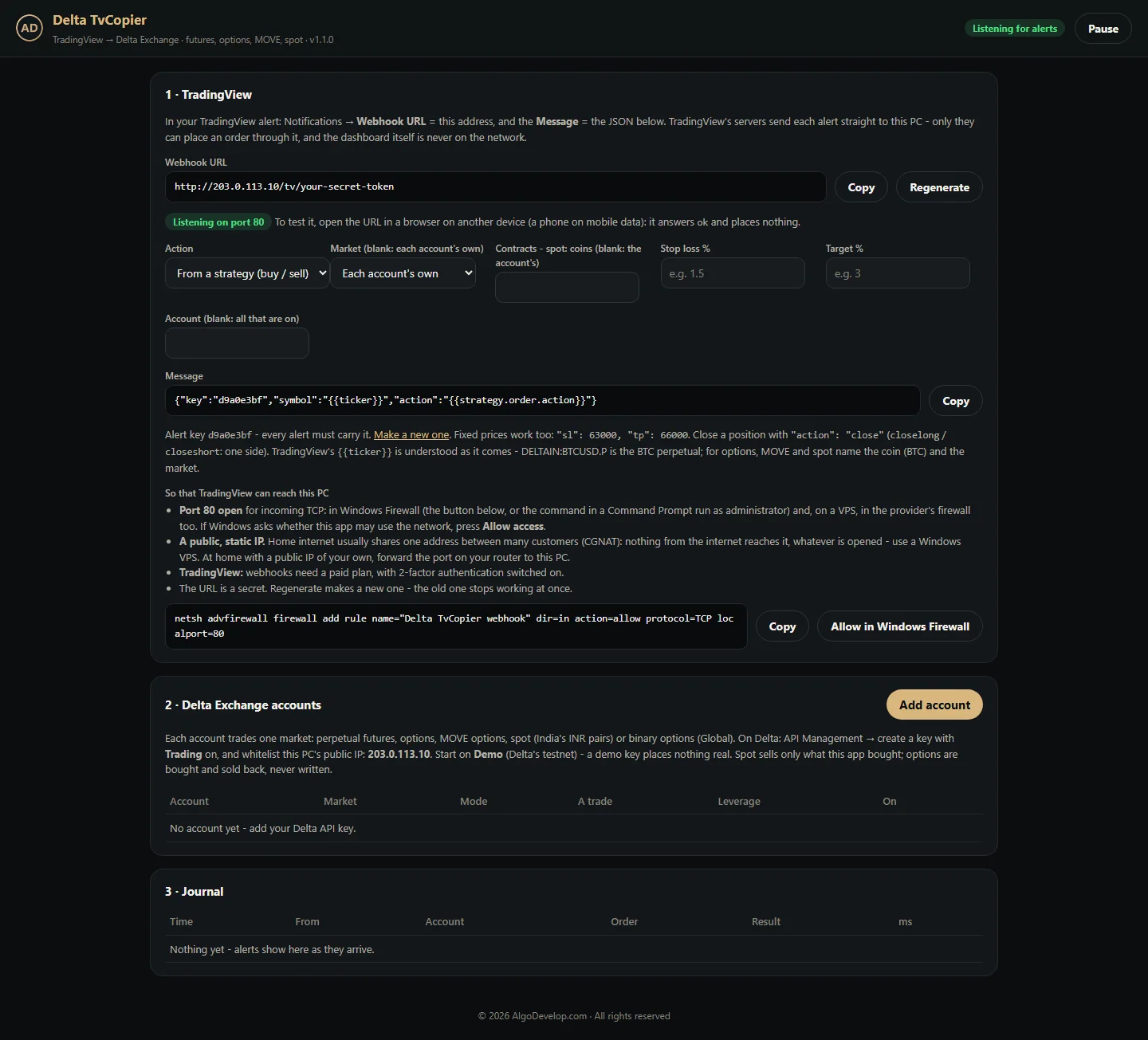
A webhook is how TradingView sends an alert to a web address. Here, though, the address belongs to the app itself, on your own machine. It looks like this, and the app shows yours with a Copy button:
http://YOUR-PUBLIC-IP/tv/YOUR-SECRET-TOKEN
- Port 80. TradingView posts webhooks to port 80 or 443 only. So the app listens on port 80 of that machine, and there it answers the alert address and nothing else.
- TradingView only. The app accepts alerts only from the addresses TradingView uses for its webhooks. It refuses a post from anywhere else, even though the token may be right.
- A private dashboard. The dashboard stays on the machine itself and never faces the internet. Only the alert address does.
- A secret address. The long random token in the address works like a password, so keep it out of screenshots and shared notes.
What TradingView asks for
TradingView sets its own rules for webhooks. First, you need a paid TradingView plan, because webhooks are for paid users only. Second, TradingView’s webhook help page says you must switch on 2-factor authentication for your TradingView account. Also, TradingView does not send webhooks over IPv6, so the app needs a public IPv4 address.
Home internet or a VPS?
Home internet is the catch. Many home and mobile connections in India and elsewhere sit behind carrier-grade NAT, where one public address serves many customers. As a result, a PC behind it usually cannot receive a webhook at all, whatever you open on your router. That is why a small Windows VPS, or a line with a static public IP and port 80 open, is the set-up that works reliably.
The alert message: what it must contain
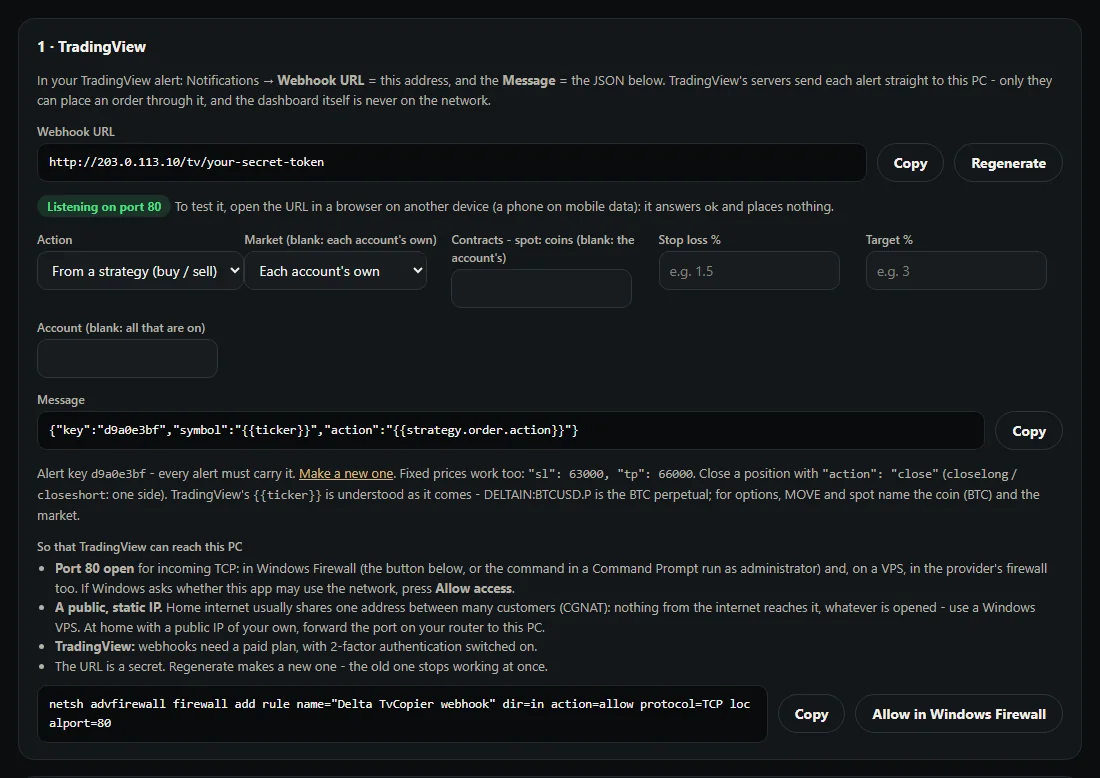
The alert’s Message box holds a short piece of JSON, but you never write it by hand. Pick the action, the market, the contracts, a stop loss and a target on the TradingView card, and the app builds the message. Then copy it into TradingView. A typical one looks like this:
{"key": "your-alert-key", "symbol": "{{ticker}}", "action": "{{strategy.order.action}}", "sl_pct": 1, "tp_pct": 2}| Field | What it does |
|---|---|
key | Your alert key. Every alert must carry it; the app refuses one without it. |
symbol | {{ticker}}, filled in by TradingView. DELTAIN:BTCUSD.P is the BTC perpetual. For options, MOVE and spot, name the coin, such as BTC, and the market. |
action | buy or long, sell or short, close or exit; closelong or closeshort for one side. From a strategy: {{strategy.order.action}}. |
market | perp, options, move, spot or binary. Leave it out to use each account’s own market. |
qty | Contracts, or coins on spot. Leave it out to use the account’s own size. |
sl, tp | Stop loss and target as prices, for perpetual futures. |
sl_pct, tp_pct | Stop loss and target as a percentage from the mark price. |
option, strike, expiry | Options only: call or put, a strike or atm, and a date as YYYY-MM-DD. |
account | One account’s name. Leave it out, or write all, for every account that is on. |
- Strategy alerts. With
{{strategy.order.action}}, TradingView writes buy or sell each time your Pine strategy places an order. So one alert covers both sides. - Closing. A close shuts the whole position at market, and then cancels its stop loss and target. Use closelong or closeshort instead to close just one side.
- Mistakes stop here. A message that is not JSON, a wrong key or a missing symbol never trades. Instead, the journal says which, so you can fix the alert.
Futures, options, MOVE, spot and binary on Delta
Each Delta account in the TradingView to Delta Exchange bot trades one market, which you pick when you add it. If an alert names a market, every account trades that market for this alert instead.
- Perpetual futures. A market order of whole contracts, with the stop loss and target as Delta’s bracket.
- Options. With no option named, a buy alert buys a call and a sell alert buys a put. The app picks the strike at the money and the nearest expiry at least 12 hours away, unless the alert names them.
- MOVE options. A buy buys the at-the-money MOVE contract on the nearest expiry at least an hour away. A sell or close sells it back, so the app never writes one.
- Spot. On Delta India’s INR pairs, a buy spends your set amount in rupees. A sell or close, however, sells only what this app bought.
- Binary options. On Delta Global only, a buy alert takes a binary call and a sell alert a binary put, on the next expiry.
Options and MOVE buys go in as limit orders just above the best ask, never past Delta’s price band. Each order takes what it can at once and cancels the rest. A close sells back just under the best bid. It is reduce-only, so the app never sells an option it does not hold.
Bracket stop loss, size and leverage
Your alert sets the trade, while the account sets the money. Here is how the risk side works:
- Bracket on the order. On perpetual futures, the stop loss and target ride on the order itself as Delta’s bracket. The stop triggers on the mark price.
- No position left bare. If the position already has a bracket, the app renews it instead. If Delta still refuses the stop loss, the app closes the trade again at once and says why.
- Your size. Each account has a number of contracts per trade – or, for spot, an amount in the pair’s currency. An alert can send its own qty, but otherwise the account’s size applies.
- Your leverage. Set it per account, up to 200x, or leave it at 0 to keep Delta’s. Alerts carry no leverage. If Delta refuses your figure, the order still goes on the account’s current leverage, and the journal says so.
- Stops on futures only. On options, MOVE and spot, the app places no stop loss or target. A chart’s stop is a price of the coin, not of the option.
A plain word on leverage. Leverage multiplies every move against you. In a fast market, Delta can liquidate a position before its stop loss fills, and a strategy that tested well can still lose. So start small, and start on the testnet.
India or Global, and the journal
Delta runs two platforms, India and Global, and the TradingView to Delta Exchange bot trades on both. For each account you pick the region, Demo or Real, a market, a size and a leverage. Then every alert goes to every account that is on, at the same time – unless the alert names one.
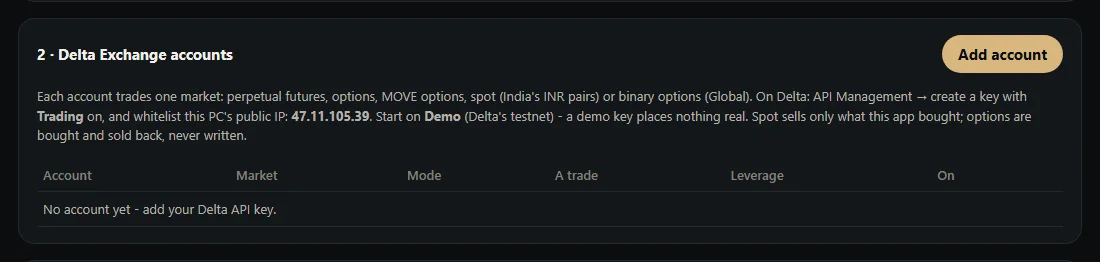
Check reads the wallet balance with that account’s own key. On a Demo perpetual or spot account, Test order buys one BTC contract, or a little BTC, on Delta’s testnet. Then it closes the trade again.
Below the accounts sits the journal. It lists every alert with its account, side, size, contract and price. Next to each, it shows Placed or Not placed with a plain reason, and the milliseconds from the alert to Delta’s answer.
Every feature in the TradingView to Delta Exchange bot
| Feature | What it does |
|---|---|
| Direct TradingView webhook | TradingView posts each alert to the app’s own address on port 80 of your PC or VPS. |
| TradingView-only intake | Alerts come only from TradingView’s webhook addresses, with your secret token and alert key. |
| Private dashboard | The dashboard never faces the internet; only the alert address does. |
| Message builder | Pick action, market, contracts, stop loss and target; copy the JSON into TradingView. |
| Every Delta market | Perpetual futures, options, MOVE options, spot and binary options. |
| India and Global | Each account trades on Delta India or Delta Global, testnet or real. |
| Bracket stop loss | Prices or percentages from the mark price; a perpetual trade whose stop fails closes again at once. |
| Close one side or both | close, closelong and closeshort, with the old stop loss and target cancelled. |
| Options never written | A sell or close sells back options you hold, reduce-only – never one you do not hold. |
| Your size and leverage | Contracts per account or per alert; leverage up to 200x, or Delta’s own. |
| Several accounts | All accounts that are on trade the same alert at once, or the one the alert names. |
| Testnet and test order | Demo keys trade on Delta’s testnet, with a one-click test order. |
| No double orders | If Delta does not answer in time, the app asks by the order’s own ID whether it went through. |
| Journal | Every alert, every account, every refusal with its reason, timed in milliseconds. |
| Pause | One button stops all new orders until you resume. |
Setting up the TradingView to Delta Exchange bot
- Install the app on a Windows VPS, or on a PC with a static public IP. It then opens in a window of its own.
- Open port 80 on that machine: in Windows Firewall, in your VPS provider’s firewall if it has one, or on your router at home.
- Create a Delta API key with Trading switched on, and whitelist the public IP the app shows. Delta’s API documentation covers keys and whitelists.
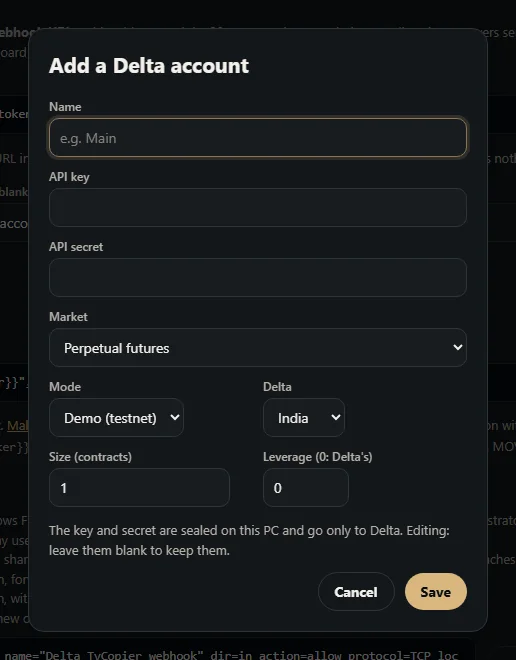
- Add the account: India or Global, the market, the size and the leverage. At first, use a Demo key from Delta’s testnet, and press Check, then Test order.
- Build the alert in TradingView. Switch on 2-factor authentication first. Then tick Webhook URL in the alert’s notifications, paste the app’s address, and paste the message from the app.
- Watch it on the testnet. Let a few alerts fire and read the journal before you add a Real key.
The app takes alerts only while it is open, and closing its window stops it. On a VPS it keeps running while your own computer is off. We can also set it up with you on a call, port 80 included.
Delta Exchange, or one of the others?
A TradingView to Delta Exchange bot suits traders who build their own alerts and trade on Delta. If that is not quite you, one of these may fit better:
- TradingView to Binance bot – the same alert intake for Binance spot, margin, futures and options.
- Telegram to Delta Exchange bot – for a channel’s calls instead of your own alerts.
- TradingView to Indian broker copier – for alerts on Zerodha, Angel One and other Indian brokers.
- All copy trading tools – every source and platform we cover.
Need logic TradingView cannot express, or a bot that runs without alerts? See crypto trading automation or a custom Python crypto bot. Still not sure? Tell us your set-up and we will say plainly what fits.
TradingView to Delta Exchange bot – frequently asked questions
Do I need a paid TradingView plan?
Yes. TradingView offers webhooks to paid users only. It also asks for 2-factor authentication on your TradingView account before it sends any webhook alert.
Does it work with Delta Exchange India?
Yes. Each account trades on Delta India or Delta Global, as you choose. Spot covers Delta India’s INR pairs, while binary options run on Global only.
Can I run it on my home PC?
Only if your connection gives that PC a public IPv4 address with port 80 open. Many home and mobile lines sit behind carrier-grade NAT and usually cannot receive a webhook. That is why a small Windows VPS is the reliable choice.
Is it safe to open port 80?
On port 80 the app answers only the alert address, and only for TradingView’s own servers. Your dashboard, meanwhile, never faces the internet. Still, treat the address like a password.
Does it work with Pine Script strategies?
Yes. Put {{strategy.order.action}} in the action and {{ticker}} in the symbol, and one alert trades every buy and sell your strategy makes. Indicator alerts work too, with a fixed buy, sell or close instead.
Which leverage does it use?
The leverage you set on the account, up to 200x, or Delta’s own if you leave it at 0. An alert does not change it, so your setting always holds.
Can I test the TradingView to Delta Exchange bot without real money?
Yes. Add a Demo account with a key from Delta’s testnet; it places nothing real. Press Test order, then fire a real alert at it and read the journal.
What happens if an alert is wrong?
Nothing trades. A message that is not JSON, a wrong alert key or a missing symbol goes to the journal with the reason, so you can fix the alert.
Is my Delta API key safe?
The app runs on your own PC or VPS. Your key and secret stay sealed there and go only to Delta, and the app shows just the last four characters. We never hold your keys.
Can I use binary options from my country?
It depends on where you live. Binary options run on Delta Global only. Several regulators restrict or ban them for retail traders, so check your own position first. We sell the software; we do not give investment advice or sell signals.
How much does a TradingView to Delta Exchange bot cost?
It depends on what you need – how many accounts, which markets, and how much set-up help you want. Tell us and we will quote it plainly: ask for a quote.